
Working with blocks
Many websites are built from content blocks: text with an image, a gallery, an FAQ, a quote… You put a page together by placing blocks one below the other.
Adding and ordering blocks
Section titled “Adding and ordering blocks”- Add: click Add at the top right, or + below the blocks, and choose a block from the list. Want a block in a specific place? Then use the plus button in the toolbar of the block above it.
- Open, move, delete and more: through the toolbar that appears when you click a block.
- Hide: some blocks can be hidden temporarily without deleting them. A hidden block appears greyed out in the list, and it doesn’t show on the website.
Don’t forget to click Save when you’re done.
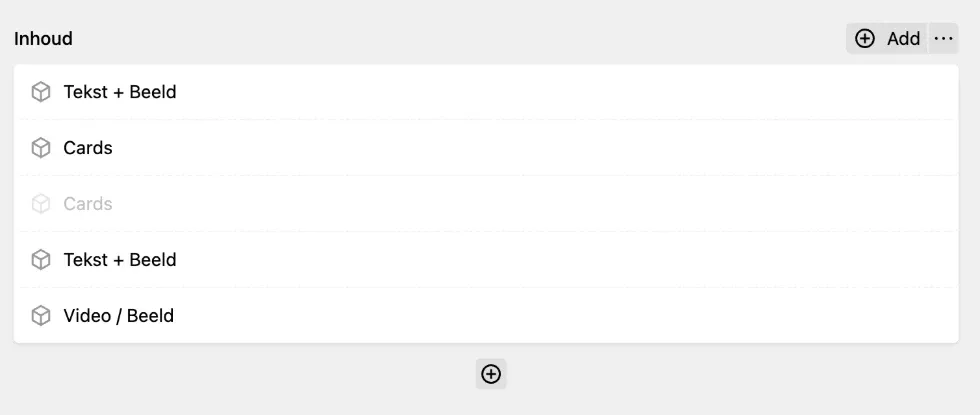
The blocks of a page. The grey block is hidden. Add or + adds a block.
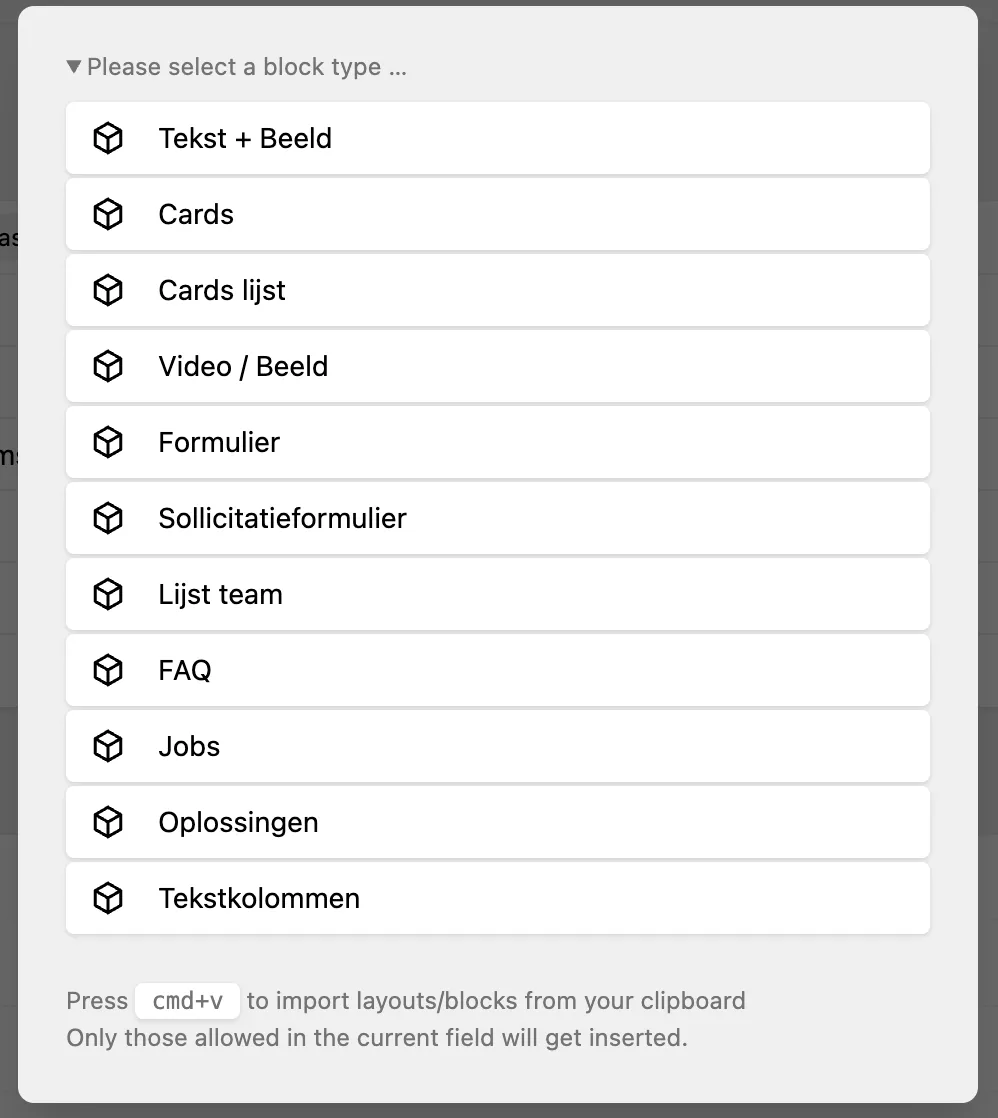
After clicking Add or +, you choose a block. This is an example: which blocks you see depends on your website.
The block toolbar
Section titled “The block toolbar”Click a block and a toolbar appears on the right.

The toolbar of a selected block.
| Icon | What it does |
|---|---|
| Pencil | Open the block and edit its content. |
| Plus (⊕) | Add a new block, right below this one. |
| Bin | Delete the block. |
| Dots (⠿) | Grab and drag to move the block. |
| Menu (⋯) | More actions, including duplicate, copy and hide. |
Settings per block
Section titled “Settings per block”Many blocks have extra settings, often in a separate tab of the block:
- Spacing: extra white space above or below the block.
- Background colour: choose one of your brand colours.
- Mirror: swap the positions of image and text.
- And other options, depending on the block.
Tips for a good page
Section titled “Tips for a good page”- Start with what matters most. What must the visitor know or do? Put that at the top.
- Vary the layout. Alternating text with images on the left and right (mirroring) reads more pleasantly than the same layout every time.
- Use white space. A page with room to breathe is easier to read than a crowded one.
- End with a next step, for example a button to your contact page or quote request.
- Check the result on a smartphone. More than half of your visitors come via a smartphone.
Multilingual website
Section titled “Multilingual website”On most multilingual websites, each language has its own blocks. That gives you freedom (a block in French only, for example), but it also needs some attention:
- First build the whole page in the default language. When you then choose another language, you see the same blocks as a starting point. Translate the text in each block and save.
- Adding, moving or deleting a block later? That only happens in the selected language. Repeat it in the other languages.
- Tip: copy the block in one language (Ctrl/Cmd + C), choose the other language, paste it in the right place (Ctrl/Cmd + V) and translate the text.
- After a big change, check every language on the website itself.
More about languages: Multilingual websites.