

Images and files
Adding an image
Section titled “Adding an image”- In an image field, click Select or Upload.
- Choose an image that’s already on the website, or upload a new one from your computer.
- Click Save.
You can also drag files straight from a folder on your computer onto the field.
Size and weight
Section titled “Size and weight”The heavier an image, the slower your website loads. That annoys visitors, and Google takes it into account. So keep your images within:
- 2000 × 2000 pixels at most;
- 2 MB at most per file.
| File type | Use it for |
|---|---|
| JPG | Photos |
| PNG | Images with a transparent background, screenshots |
| WebP | Photos: smaller than JPG at the same quality, if the CMS accepts it |
Give images a good name
Section titled “Give images a good name”Give a file a clear name before you upload it, for example bathroom-renovation-ghent.jpg instead of IMG_4032.jpg. That helps Google, and helps you when you look for the file later. Read the tips in Images and SEO.
More options per image
Section titled “More options per image”Click an image to open its detail page.
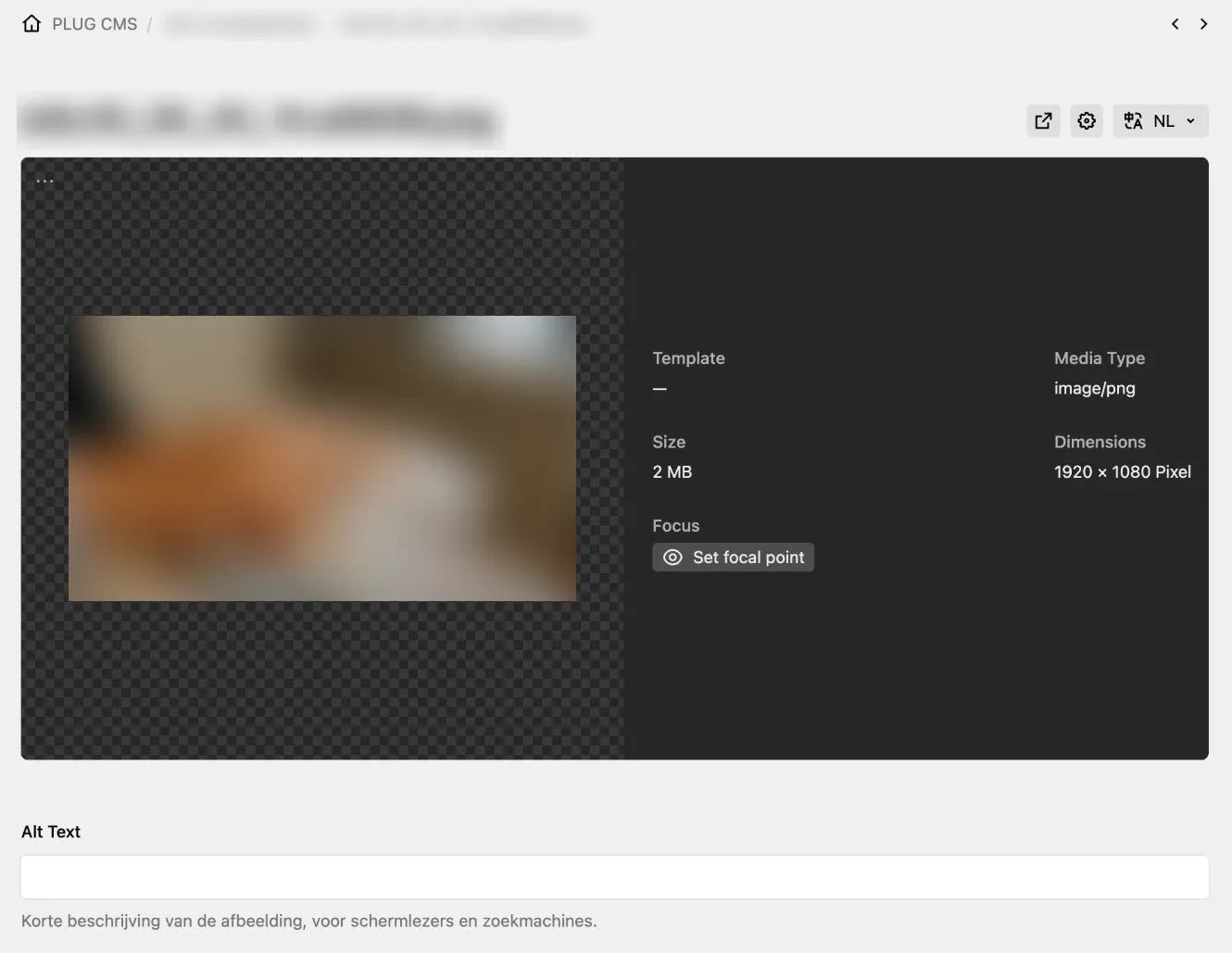
The detail page of an image. The file name is at the top, the Alt Text field at the bottom.
Depending on your website, you can:
- check the file’s size (Size) and dimensions (Dimensions), for example whether it stays within 2000 × 2000 pixels and 2 MB;
- fill in alt text in the Alt Text field: a short description of what the image shows (see Alt text);
- choose a focus point with Set focal point: mark the most important part of the image. It always stays visible when the website crops the image, for example on a smartphone;
- through the gear (⚙) at the top right:
- Rename: change the file name;
- Replace: replace the file with a new version. The new version then appears everywhere the file is used;
- Delete: delete the file.
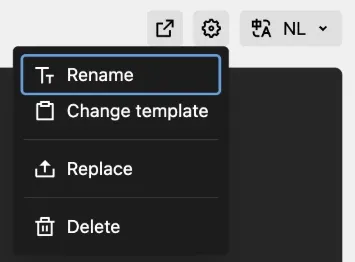
The menu under the gear. You don’t need to use Change template.
PDFs and other files
Section titled “PDFs and other files”- Give PDFs a clear name too:
price-list-2026.pdf, notDocument1_final_v3.pdf. - Keep PDFs light: export them for screen or web, not for print.
- A new version of a document? Use Replace in the gear menu (⚙). All links to it keep working.
Don’t upload large video files to the CMS: it makes the website slow. Put videos on YouTube or Vimeo and add the link in a video block, if your website has one.